Publish and share
Once you publish, your connector is live. Users connect it to their assistant in about a minute.
Apps go live on a plan. If your workspace doesn’t have one yet, Publish opens the plans instead: choose one, add a card on Stripe’s checkout page and you come back to your app, which publishes as soon as Stripe confirms the plan. Building and testing stay free until then (see Plans and billing). Only the workspace owner can choose a plan.
Making changes
Edits you save in the console don’t reach your users straight away. When you have saved changes that aren’t live yet, a bar at the top of the console says which sections changed (Actions, How agents use your app, Login, Setup page, App details, Protection or Where people find it). Click Publish now in the bar to make them live, or See changes to open Publish & share, which lists them and has its own Publish button. Publishing from the bar leaves any unsaved edits on the page you’re on as they are: save them, then publish again. Unsaved edits on that page are saved as part of publishing (Save and publish). People already connected stay connected. When everything you’ve saved is live, there’s nothing to publish.
Changed your mind? Click Discard in the bar (or Discard these changes on Publish & share) and confirm. Every section goes back to the version that’s live, including any unsaved edits on the page you’re on. Your users see no difference, because the live version never changed. This can’t be undone.
Safety check
Before anything goes live, Gephyr checks everything AI agents read about your app: action names, descriptions and inputs, your app’s name and description, example requests and your notes for AI agents. This text often comes from imported API docs or AI drafting, so Gephyr checks it rather than trusting it. Hidden instructions in tool text (“tool poisoning”) are a known way to attack AI agents, and security scanners flag them.
Hidden characters (zero-width spaces, direction overrides and similar characters people can’t see but AI agents read) are removed automatically when you save, import or edit. Text saved before this check existed stops publishing until you retype it.
Stops publishing until you fix it:
- Attack phrases: text telling agents to ignore their instructions, or hidden-instruction tags like
<IMPORTANT>.
Worth a look (shown on Publish & share, never stops publishing):
- Text that tells agents to keep something from the user, act without them knowing, or touch files on their computer.
- Descriptions that give agents orders rather than say what the action does (your notes for AI agents are meant to guide agents, so they aren’t flagged for this).
- Mentions of tools that aren’t among your actions.
- Links to sites other than your own.
- Risky actions on Write: an action that deletes, involves money, cancels, or sends or publishes (judged from its method, address and name) is on Write, so agents can run it without the user’s OK. Gephyr suggests Ask first.
- The risky combination: your app can read users’ private data, read text other people wrote (messages, comments, reviews) and send things out with a Write action. A planted message could try to get an agent to send private data out, so Gephyr suggests making those sending actions Confirm. When they already are, there’s no warning.
Separately, every result your API returns has terminal escape codes and hidden characters removed before an agent reads it. What people can see is never changed.
Your two addresses
| Address | Use it for | |
|---|---|---|
| Setup page | https://mcp.gephyr.ai/t/yourapp |
Link your users here: your website, help centre, app settings, emails |
| Connector link | https://mcp.gephyr.ai/t/yourapp/mcp |
What users paste into their assistant |
The setup page is branded with your logo, name and colour, on a clean, link-style page from Gephyr (light or dark: your choice, or each visitor’s device setting). It has your connector link as one big button that copies it, step-by-step instructions for each assistant (Claude, ChatGPT, Grok Bot and Meta Muse first; developer tools under More apps), your example prompts (tap one to copy it), what the connector can do, and safety notes. While your message board is on, it also shows your domain as verified by Gephyr and suggests asking for your news and deals first. Shared on social sites or in chat apps, it shows as a large card: a picture in the setup page’s style with your logo, app name, link, one of your example prompts and “Powered by Gephyr”, in your brand colour, which the console makes each time you publish, plus your app’s description (ending “Powered by Gephyr”). Social sites keep a card for a while, so a new one can take a day or so to show where the link was shared before. It’s a plain page with no tracking: it loads nothing from other sites (its fonts come from Gephyr), and its only script is the Copy button.
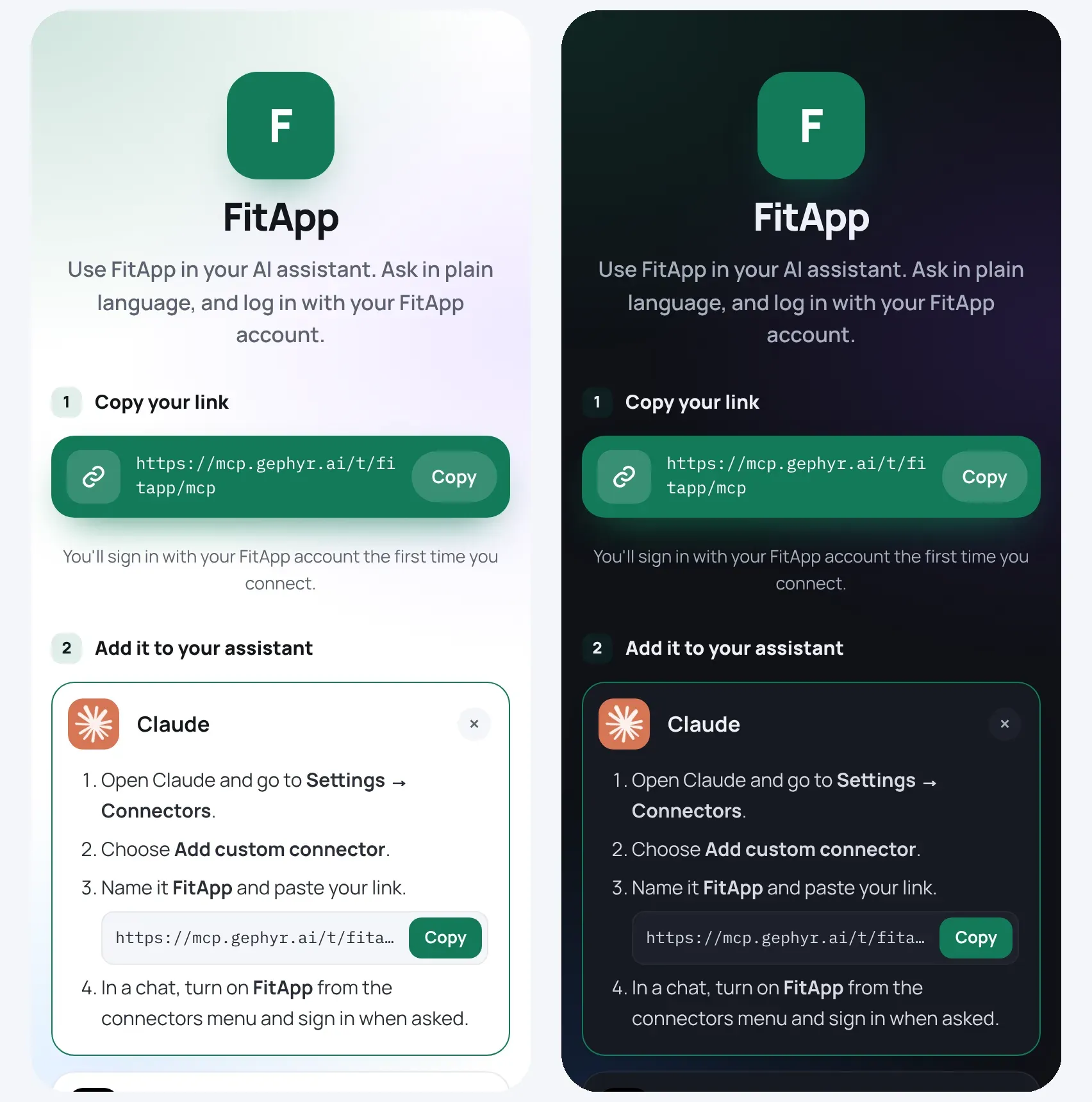
Editing your setup page
Open Publish & share in the console to change it. A preview beside the form updates as you type, with tabs for the Setup page, the Allow access page your users see when their AI agent asks to connect, and your Login page (or a note, if your users log in on your own login page). You can change:
- App name and logo (PNG, JPEG or WebP up to 64 KB, or an SVG, which the console turns into a 256×256 PNG as you upload it). Your connector also gives AI apps your logo when they connect, for the ones that show a connector’s own icon. A logo saved as an SVG before this is turned into a PNG when you next open the app in the console: publish to send it out. Claude currently shows the icon of the connector address’s website instead, so it shows Gephyr’s there.
- Brand colour: the accent on your setup page (the Copy buttons, the shadow behind your link card and logo, the highlight behind your app’s name) and the header of the Allow access and login pages. Text on it switches between light and dark so it stays readable.
- Light or dark: Match device (the default) follows each visitor’s own light or dark setting; Light or Dark keeps your setup page, Allow access page and login pages that way for everyone.
- Examples to try: up to 6 short requests shown under “Then try asking”. Gephyr writes a few for you from your actions the first time you save them, so the page never starts empty. Edit them so they sound like your users, or click Suggest examples for a fresh set.
- Help link: optional, shown at the bottom as “Need help? Contact your app”. Must be an https:// address.
Save, then publish to update the live page.
To open one assistant’s steps straight away, add ?for= to the link: ?for=claude, ?for=chatgpt, ?for=grokbot, ?for=muse, ?for=cursor or ?for=claude-code. Handy for a “Use in ChatGPT” button in your app.
More links
On Growth and up, an app can have more than one link, each with its own setup page and its own set of actions: a read-only link next to the full one, say, or one for your support team.
| Plan | Links per app (your app’s own address included) |
|---|---|
| Starter, Launch | 1 |
| Growth | 3 |
| Scale | 10 |
Add one on Publish & share, under Links: give it a name (“Read-only”) and an address part (read-only), and choose what it starts with (look-ups only, everything your app has, or nothing). Its addresses are:
| Address | |
|---|---|
| Setup page | https://mcp.gephyr.ai/t/yourapp/read-only |
| Connector link | https://mcp.gephyr.ai/t/yourapp/read-only/mcp |
Once you have a link, tabs across the top of Overview, Actions, Activity and Publish & share switch between Main (your app’s own address) and each link:
- Actions: switch actions on or off for that link and pick their level. A link can make an action stricter than Main (Ask first instead of Write) or switch it off, never give it more: an action that’s Ask first on Main is Ask first on every link, and one that’s off on Main is off everywhere. Actions you add to Main later start off on every link, and an action you delete comes off every link (made again later, it starts off there too).
- Overview and Activity: that link’s calls, people and requests on their own.
- Publish & share: its addresses, renaming it and removing it.
Everything else is shared by every link: your API, login, protection limits (counted per user and action across all links), message board, setup page design, and who can use it. Publishing (on Main) puts out every link at once.
Each link is a separate connection in your users’ AI agents. Signing in to one link doesn’t sign them in to another, and a sign-in for one link can’t be used at another or at Main. Removing a link and publishing ends its sign-ins straight away. The MCP Registry listing and server card are for Main only.
Where people find it
Two ways for AI apps, directories and developers to find your app before anyone connects. Both are on the Publish & share tab, under Where people find it, and go live when you publish. Only your app’s name, description, logo and links are shared. Your actions and anything about your users never are.
Server card
On by default. Your connector publishes a short public description of itself at https://mcp.gephyr.ai/t/yourapp/mcp/server-card, in the standard format AI apps and directories read (MCP Server Cards). It holds your app’s name, description, logo, setup page and connector URL, and the protocol versions it speaks. Switch it off if you’d rather keep your app unlisted.
To make your app easy to find from your own website, add it to an AI Catalog at https://yourapp.com/.well-known/ai-catalog.json:
{
  "specVersion": "1.0",
  "entries": [
    {
      "identifier": "urn:air:yourapp.com:mcp:yourapp",
      "type": "application/mcp-server-card+json",
      "url": "https://mcp.gephyr.ai/t/yourapp/mcp/server-card"
    }
  ]
}
MCP Registry
Off by default. Switch on List in the MCP Registry and Gephyr adds your app to the official MCP Registry, the public list of MCP servers that AI apps and directories search. Your app is listed as ai.gephyr/yourapp, and Gephyr updates the entry every time you publish. Your Overview then shows a Listed in the MCP Registry badge.
Switching it off takes the entry down at your next publish. Pausing or deleting your app takes it down straight away; if the registry can’t be reached just then, Gephyr keeps trying every hour until it’s down. If the registry turns something down, Publish & share says why, and your app still goes live. Gephyr tries again the next time you publish. The registry itself is still in preview, so its rules can change.
Under your own domain
Your app can be listed under your own domain instead: com.yourapp/yourapp for yourapp.com. It shows people the listing really comes from you. Under List it under your own domain instead, enter your domain and choose Use this domain. Gephyr makes a key for your app and shows one DNS record to add at your DNS host:
| Type | Name | Value |
|---|---|---|
| TXT | yourapp.com (often written @) |
v=MCPv1; k=ed25519; p=… (copy it from the console) |
Then choose Check the record. New records can take a few minutes to show. At your next publish the listing moves to your domain, and the ai.gephyr entry comes down. If the record isn’t there yet, Publish & share says so, your current entry stays up, and your app still goes live.
- Each app has its own record, so several apps can share a domain. A subdomain works too:
apps.yourapp.comlists ascom.yourapp.apps/yourapp. - Keep the record while your app is listed. Gephyr needs it to update the entry and to take it down.
- Entering the same domain again, or going back to the domain you’re listed under, keeps the same key, so a record you’ve already added stays valid. A different domain gets a new key and a new record.
- To go back, choose Use ai.gephyr/yourapp instead. Your domain’s entry comes down at your next publish. You can remove the record after that.
- Where your DNS host supports it, Add it with your DNS host adds the record for you after you sign in there and approve it.
Availability: one-click Add it with your DNS host turns on host by host as DNS hosts take on Gephyr’s setup. Until then, add the record by hand. Everything else on this page is live.
How users add it, by assistant
The setup page shows these steps automatically, with your app’s name filled in.
Claude
- Settings → Connectors → Add custom connector.
- Name it after your app and paste the connector URL.
- In a chat, turn your app on from the connectors menu, and sign in when asked.
ChatGPT
- Open Plugins, select +, then Add custom MCP server.
- Name it, paste the connector URL, and choose the sign-in (OAuth) option under Authentication. For public-data connectors, choose No authentication.
- Confirm and choose Create as a plugin, then install it from your personal plugins.
- Switch to Work, start a chat, type @ and choose your app.
Availability depends on the user’s ChatGPT plan or workspace.
Grok Bot
- Just ask: the setup page gives users a message to send in a chat, with your connector URL and how sign-in works. Grok Bot adds the connector and asks them to sign in.
- By hand: go to grok.com/connectors → New Connector → Custom, paste the connector URL and sign in when asked.
Meta Muse
- Just ask: the same kind of message, sent to Muse in a chat.
- By hand: Settings → Connectors → Add custom connector, name it after your app, paste the connector URL and sign in when asked.
Claude Code
claude mcp add --transport http yourapp https://mcp.gephyr.ai/t/yourapp/mcpCursor: add this to ~/.cursor/mcp.json and restart:
{ "mcpServers": { "yourapp": { "url": "https://mcp.gephyr.ai/t/yourapp/mcp" } } }Any other assistant that supports MCP connectors over HTTP: paste the connector URL wherever it asks for an MCP server URL.
Announce it
Your dashboard’s Share with your users tab has ready-to-edit templates, filled in with your app’s details:
- an email to your users;
- an in-app banner;
- a help-centre article;
- a social post;
- a website button.
A checklist tracks the launch: publish, test in Claude or ChatGPT, link the setup page, announce, and submit to assistant directories.
Assistant directories
Being listed in Claude’s and ChatGPT’s app directories lets users find you from inside the assistant. Gephyr prepares the listing details with you. Each directory has its own review, and we’ll tell you what it requires.
Updating a published connector
Edit actions or settings, then publish again. Assistants pick up the new actions the next time they connect. Connected users stay connected.
Something missing or wrong? Email hello@gephyr.ai.