Sign-in: step by step for each provider
Start by entering your domain in Sign-in. Gephyr usually detects your provider and fills in the technical details. Below is what’s left for each one.
In every case, Gephyr’s callback address is shown in the dashboard with a copy button:
https://mcp.gephyr.ai/t/yourapp/callbackShow you own your API and your login (OAuth providers)
With an OAuth or OpenID provider, the tokens your login issues go to your API, so before you publish, Gephyr needs to know both are yours. Otherwise someone could publish a look-alike of your app wired to your real login and have your users’ tokens sent to their own server.
- Your API’s addresses: the host of your API address on App details (e.g.
api.yourapp.com) and every other API host listed there, since actions and the plan check for paying customers can go to any of them; and the address Gephyr asks who signed in, when that’s an address of your API rather than an ID token. Do one of these on the Login step, then click Check:- Add a DNS TXT record with the name and value Gephyr shows (
_gephyr.yourapp.com,gephyr-verify=…). DNS changes can take a few minutes. - Or put that value in a plain text file at
https://api.yourapp.com/.well-known/gephyr-verify.txt(one per address).
- Add a DNS TXT record with the name and value Gephyr shows (
- Your login’s addresses (the hosts of the sign-in and token URLs): unless you used Connect (Auth0, Okta or Clerk), which proves the login is yours because only your provider’s admin has the key it needs. A login on your own domain, such as
login.yourapp.com, is covered by the same DNS record as your API (one record on_gephyr.yourapp.comcovers every address on yourapp.com), or by a file on that host. A login at your provider’s own address, such asyourapp.us.auth0.com, can’t be proved this way, since you don’t control that domain: use Connect for Auth0, Okta or Clerk, or give your login a custom domain on yours.
In short: every address your users’ tokens can reach must be shown to be yours. Gephyr lists them on the Login step, with a tick for each.
The value is unique to your connector. Keep the record or file in place: Gephyr checks it again every time you publish. Moving your login to another address, or swapping in another client ID after Connect, means showing you own the new address.
Auth0
Recommended: Connect Auth0. Gephyr detects Auth0 from your domain. Click Connect Auth0 and a pop-up walks you through it:
- Click Open Auth0. It opens your tenant’s Management API token page (API Explorer).
- The first time, click Create & Authorize Test Application. Then click the copy icon next to the token.
- Paste it in the pop-up. Gephyr checks it straight away (✓ Auth0 token for your tenant) and you click Connect Auth0. The token is used once and never stored.
Auth0, Okta and Clerk don’t let outside apps ask for access by logging in, so a one-time admin key is the only automatic way to set this up. You can delete the “API Explorer Application” in Auth0 afterwards.
Gephyr creates a Regular Web Application named Gephyr. It has our callback, sign-in and refresh, and refresh tokens that renew themselves. If you have one API registered in Auth0, Gephyr requests tokens for it.
Check afterwards: if Gephyr says so, turn on Allow Offline Access for your API (Applications → APIs → your API → Settings) so users stay connected.
By hand instead: create a Regular Web Application named Gephyr, add the callback address, enable Authorization Code and Refresh Token, then paste the client ID and secret into Gephyr. By hand, you also show you own your login’s address (see above): with a custom domain on yours, the same DNS record as your API covers it; at yourapp.us.auth0.com, use Connect instead.
Okta
Recommended: Connect Okta. Click Connect Okta; the pop-up’s Open Okta button takes you to Security → API → Tokens in your Admin Console.
- Click Create token, name it Gephyr, and copy it.
- Paste it in the pop-up and click Connect Okta. The token is used once and never stored, so you can revoke it in Okta afterwards.
Gephyr creates an OpenID Connect web app named Gephyr, with our callback and refresh tokens, and assigns it to everyone. Tokens come from your org’s default authorization server (the one your own APIs normally trust), when it has one. Gephyr also adds an access policy named Gephyr to that server, covering only the Gephyr app, because Okta blocks sign-in to any app no policy covers (“You are not allowed to access this app”).
If your users sign in on a custom domain (e.g. login.yourapp.com), Gephyr also asks for your Okta org address (yourorg.okta.com). The token is only ever sent to your Okta org.
By hand instead: Applications → Create App Integration → OIDC → Web Application, with the callback as the sign-in redirect URI and Refresh Token enabled. Assign it to your users, then paste the client ID and secret. By hand, you also show you own your login’s address (see above): with a custom domain on yours, the same DNS record as your API covers it; at yourorg.okta.com, use Connect instead.
Clerk
Recommended: Connect Clerk. Click Connect Clerk; the pop-up’s Open Clerk button takes you to your API keys.
- Copy your secret key (
sk_live_…). The pop-up tells you if you copied the publishable key by mistake. - Click Connect Clerk. The key is used once and never stored.
Gephyr creates an OAuth application named Gephyr with our callback and the scopes it signs in with: openid, profile, email and offline_access (so users stay connected).
By hand instead: Configure → OAuth applications → Add, named Gephyr, with the callback address and the openid, profile, email and offline_access scopes. Paste the client ID and secret. By hand, you also show you own your login’s address (see above): with a custom domain on yours, the same DNS record as your API covers it; at a clerk.accounts.dev address, use Connect instead.
Amazon Cognito
Guided setup:
- Open your user pool → App integration → App clients → Create app client.
- Choose a confidential client with a client secret, and the Authorization code grant.
- Add the callback address and allow the
openidandprofilescopes. - Paste the client ID and secret into Gephyr.
Supabase
Gephyr uses direct sign-in: a sign-in page with your branding, where the password goes from the user’s browser straight to Supabase.
Recommended: Connect with Supabase. On the Login step, click Connect with Supabase, approve Gephyr in Supabase and pick your app’s project. This proves you own the project, which you need to publish, and adds Gephyr’s return address to your project’s redirect URLs so Google, Apple and other social logins work. Gephyr asks for read access to your projects and read and write access to auth settings, and keeps no access token afterwards. If Gephyr can’t find your publishable key in your imported actions, paste it to finish. The connection finishes back in the Gephyr console where you clicked the button, signed in as you: a Connect link opened by anyone else does nothing.
By hand instead:
- Paste your project URL and your publishable (anon) key. These are the public values already in your app. Never paste the
service_rolekey; Gephyr refuses it. - For Google, Apple or other social logins, add
https://mcp.gephyr.ai/t/yourapp/sign-in/return/**to Authentication → URL Configuration → Redirect URLs. - To publish, you still click Connect with Supabase once, to confirm you own the project.
The sign-in page shows the same options as your app: a Continue with Google, Apple, GitHub (and so on) button for each social login you have turned on in Supabase, and the email and password form if email sign-in is on. Gephyr reads this from your project’s auth settings, so turning a provider on or off in Supabase updates the page within a few minutes.
Your API must accept Supabase access tokens, which it does if it already verifies Supabase sessions. Test sign-in checks this.
Supabase’s OAuth server. If your project has it turned on, the Login step also offers it under Use Supabase’s OAuth server instead. It sends users to a consent page that your app has to provide, and you register Gephyr as an OAuth client in Supabase by hand, so Connect with Supabase is quicker for most apps.
Firebase
Direct sign-in. About 5 minutes by hand, or about a minute with Connect with Google.
Connect with Google
On the Login step, click Connect with Google and sign in with the Google account that owns your Firebase project. Gephyr asks for one permission, to view and manage your Firebase settings, and then:
- fills in your web API key and project ID (if you have several projects, you pick one);
- adds Gephyr’s addresses for your app to Authentication → Settings → Authorized domains:
mcp.gephyr.ai, where your users sign in; your app’s proof address (proof-<code>.<your-app>.mcp.gephyr.ai), which shows Gephyr the project is yours and which you need to publish; and<your-app>.mcp.gephyr.ai, kept for when each app gets its own address.
Gephyr uses that access once and keeps no Google token afterwards. Social sign-in (step 3) still needs Gephyr’s return address added on each provider’s side, because Google and the others don’t let apps change that for you. If your project has no web app yet, or Authentication isn’t turned on, Gephyr tells you what to do in Firebase first. Until Google finishes reviewing Gephyr’s app, Google’s screen shows Gephyr’s web address instead of its name. As with Supabase, the connection finishes only in the Gephyr console where you clicked the button, signed in as you.
1. Paste your web app config
In the Firebase console, open Project settings → General and scroll to Your apps. Paste the web API key and project ID into Gephyr. These are public values that already ship in your web app. If the API key is restricted to certain websites, add mcp.gephyr.ai to that list.
2. Authorize Gephyr’s domain in Firebase
Open Authentication → Settings → Authorized domains and add two addresses:
mcp.gephyr.ai, where your users sign in;- your app’s proof address,
proof-<code>.<your-app>.mcp.gephyr.ai(for exampleproof-3f9a0c27b1d84e65.fitapp.mcp.gephyr.aiformcp.gephyr.ai/t/fitapp). Copy it from the Login step: the code is made from your app in Gephyr, so no other app has it, not even one made later at the same address. It’s how Gephyr confirms you own the project, and publishing checks for it. Nothing is served there; it only has to be on the list.mcp.gephyr.aialone isn’t enough: every Firebase project that signs users in through Gephyr lists it.
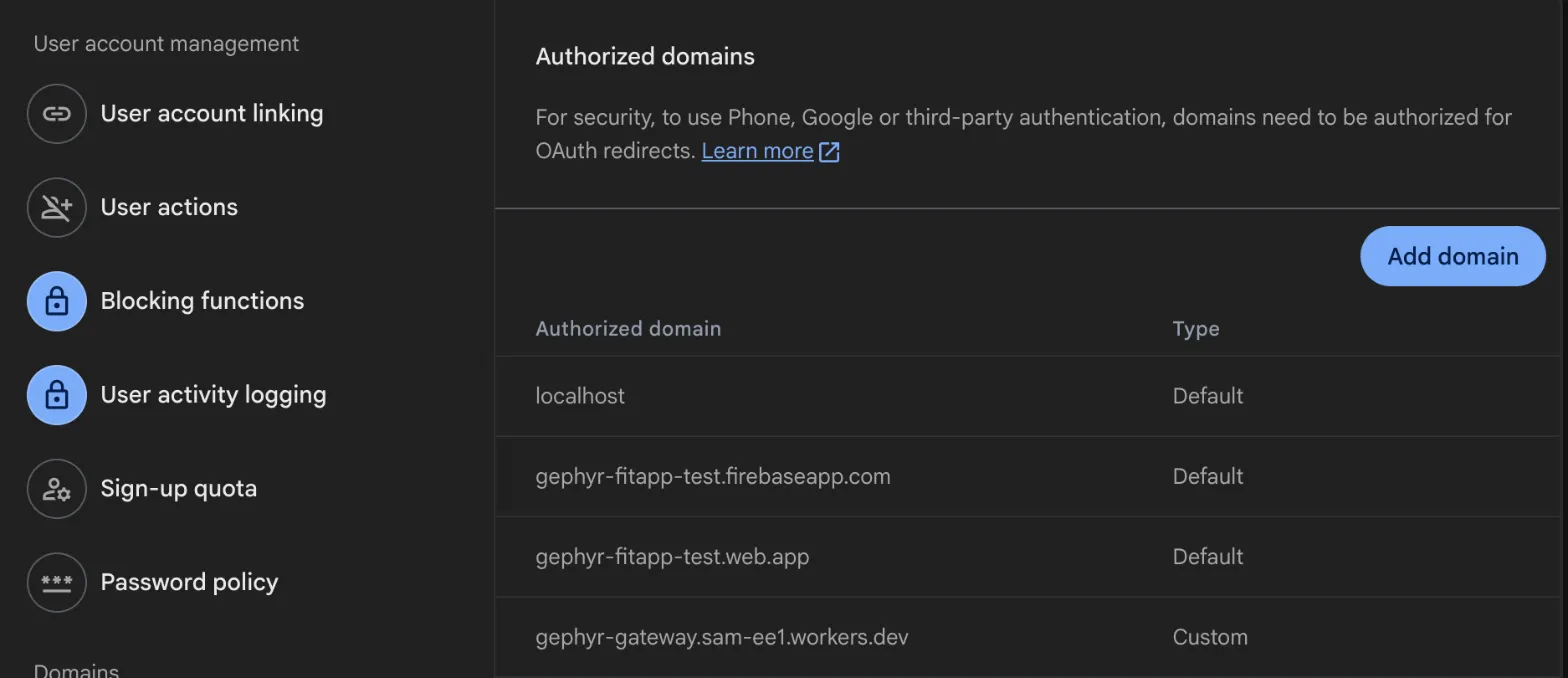
Apps made before 20 October 2026 can still publish with <your-app>.mcp.gephyr.ai on this list instead of the proof address, which is what they were set up with; adding the proof address works for them too. If you delete the app in Gephyr later, you can remove its addresses from this list: an app made later at the same address has a different proof address, so it can’t use your project either way.
Email and password sign-in works from here. If that’s all your app uses, you’re done.
3. Add social sign-in (Google, Apple, Microsoft, Facebook, X)
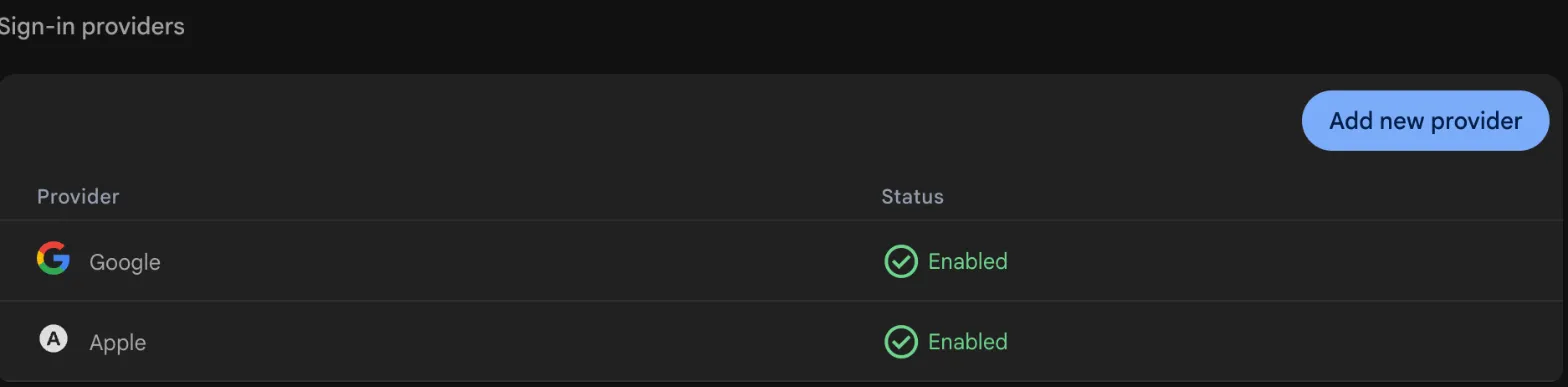
Once your Firebase login is set up, the Login options list on Gephyr’s Login step shows every social login Firebase supports. For each one, it says whether it’s turned on in your project’s Sign-in method tab and what’s left to do. Set up opens a short pop-up: a link straight to the right page, the steps, and Gephyr’s return address to copy.
- Google is on by default. Its button appears by itself once Google accepts Gephyr’s return address, which the pop-up’s Check now confirms. Click Hide if you don’t want it.
- Apple, Microsoft, Facebook and X can’t be checked from outside, so their buttons appear once you click I’ve added it in the pop-up. Apple also needs its key in Firebase (see Apple below); Gephyr checks that one for you.
Changes show on your sign-in page after you publish.
Each provider also has to know Gephyr’s return address, which is where it sends your users after they sign in. Add this address once per provider:
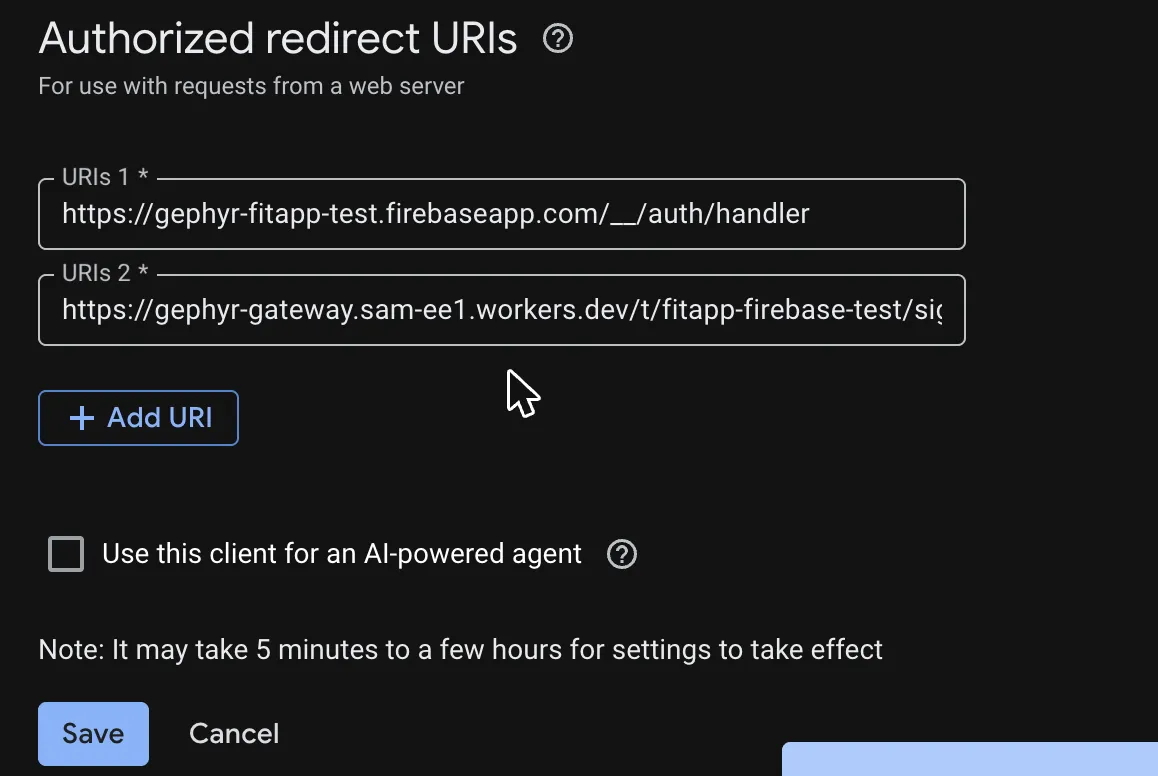
https://mcp.gephyr.ai/t/yourapp/sign-in/returnIn each provider, add it to the app your Firebase project already uses for that login. Firebase → Sign-in method shows which one: its client ID, App ID or API key. Keep the address Firebase uses there (…firebaseapp.com/__/auth/handler) too: your own app still needs it.
Google. The Google sign-in client lives in Google Cloud, in the project Firebase created for you (same name). Open Google Auth Platform → Clients with that project selected (it’s also listed under APIs & Services → Credentials), and click Web client (auto created by Google Service).

Under Authorized redirect URIs, click Add URI, paste the return address and Save. Google says changes can take from 5 minutes to a few hours; usually it’s minutes.
Apple. Apple Developer → Certificates, Identifiers & Profiles → Identifiers, open the Services ID your Firebase project uses, click Configure next to Sign in with Apple, then + next to Website URLs. Add Gephyr’s address (mcp.gephyr.ai) under Domains and Subdomains and the return address under Return URLs, then click Next, Done, Continue and Save. Firebase also needs Apple’s key: in Sign-in method → Apple, fill in the Services ID and the OAuth code flow configuration (Apple Team ID, Key ID and private key). Gephyr signs users in from its server, which only works with these. Until they’re there, Login options shows Apple as On in Firebase · needs Apple’s key and keeps its button off your sign-in page.
Microsoft. Microsoft Entra admin center → App registrations, open the registration whose Application (client) ID matches Firebase’s, go to Authentication → Add Redirect URI → Web (older screens: Add URI under Web), paste the return address and click Configure or Save.
Facebook. Meta for Developers, open the app whose App ID matches Firebase’s, go to Use cases → Facebook Login → Customize → Settings (older apps: Facebook Login → Settings), add the return address to Valid OAuth Redirect URIs and click Save changes.
X. X Developer Console, open the app whose API key matches Firebase’s, go to User authentication settings → Edit, add the return address under Callback URI / Redirect URL exactly as shown, and click Save.
What your users see. They tap Continue with Google (or Apple, …), sign in on the provider’s own page, and come straight back. There’s no pop-up and nothing is stored in the browser, so it works where pop-ups don’t. Tested with Google from the Claude iPhone app’s in-app browser. Providers set their own rules about which browsers may show their sign-in page (Google, for example, refuses some embedded web views); if a provider refuses, the user can connect again from a regular browser. Apple, Microsoft, Facebook and X use the same mechanism but haven’t been verified end to end yet. On Google’s screen, the name shown is the one in your Google project’s OAuth branding settings, so set your app name and logo there if you haven’t.
Setup checks. Before showing a button, Gephyr checks for the setup problems it can detect: a provider that’s off in Firebase, a domain that isn’t authorized yet, and for Google, a return address that Google doesn’t accept. Buttons for those stay hidden and appear within five minutes of fixing the setup. These checks are best-effort: they can’t verify the return address for Apple, Microsoft, Facebook or X, and if a check can’t get an answer, the buttons you chose are shown (but Google isn’t turned on by default until a check succeeds). So complete the steps above for each provider you offer, and test the connection yourself once; a missed step shows up as an error page from that provider. GitHub sign-in through Firebase isn’t supported, because a GitHub app allows only one callback address. If your app only uses social sign-in, you can turn the email and password form off.
Your API must accept Firebase ID tokens. Test sign-in checks this.
WorkOS, Google, Microsoft Entra, Keycloak
Create an OAuth/OpenID client for Gephyr in your provider with:
- the callback address above as the redirect URI;
- the authorization code and refresh token grants;
- a client secret.
Then paste the client ID and secret. Gephyr shows the exact menu path for your provider. For Google, Gephyr requests offline access automatically so users stay connected.
To publish, show you own your API’s address and your login’s addresses (see above). A login on your own domain (Keycloak, WorkOS or Entra on login.yourapp.com) is covered by the one DNS record on your domain; a login at the provider’s own address (accounts.google.com, login.microsoftonline.com, *.workos.com) can’t be, so use a custom domain on yours for it where your provider offers one.
Another OAuth / OpenID provider
Gephyr fills in what it found and asks only for what’s missing: the sign-in URL, token URL, client ID and secret, scopes, and how to identify the user. If your provider doesn’t support OpenID Connect, you give an API address that returns the signed-in user, such as /me, and the field holding their ID. Every field explains where to find it. To publish, show you own your API’s address and your login’s addresses (see above).
Your own login (no OAuth)
For apps with accounts and an API but no OAuth server, where your app signs people in with its own endpoint, such as POST /auth/login returning a token. Your users sign in on a page with your logo and name, which also shows your login’s address; Gephyr sends their email (or username) and password once to your login address and keeps only the token your login returns. The password is never stored or logged.
-
Your login address. On the Login step, pick Your own login. If your imported API docs have a login endpoint, Gephyr suggests it: click Use your own login. Enter the address your app sends the email and password to, e.g.
https://api.yourapp.com/auth/login, and whether users sign in with an email or a username. It must be on your API’s domain. -
Show you own it. Gephyr only sends passwords to an address you control. Do one of these, then click Check:
- Add a DNS TXT record named
_gephyr.api.yourapp.comwith the value Gephyr shows (gephyr-verify=…). A record on_gephyr.yourapp.comworks too and covers all of yourapp.com. DNS changes can take a few minutes. - Or put that value in a plain text file at
https://api.yourapp.com/.well-known/gephyr-verify.txt.
The value is unique to your connector. Keep the record or file in place: Gephyr checks it again every time you publish.
- Add a DNS TXT record named
-
Test sign-in. Sign in with an account in your app, as your users would. Gephyr finds where your login puts the token, any refresh token and expiry, and who signed in. It also works out how your API expects the token (
Authorization: Bearer,Authorization: Token,X-Auth-TokenorX-Access-Token), tries one of your read actions, and saves what it found. You can publish once the test passes. If you later change how sign-in works, test again.
Advanced. If the test can’t work something out, it tells you what to set under Login settings → Advanced: field names, JSON or form, where the token and user ID are (paths like /data/token or /user/id), an address of your API that returns the signed-in user (like /me), the header your API reads the token from, and your refresh address. You can also add Forgot your password? and sign-up links to your own pages there.
Staying connected. With a refresh address, Gephyr renews each user’s token so they stay connected. Without one, they reconnect when the token expires. Gephyr reads the expiry from your login’s answer, or from the token itself when it’s a JWT.
Limits and good to know.
- Your login must answer with JSON that contains the token. Logins that only set a session cookie aren’t supported yet.
- Accounts with two-step verification, and logins that ask for a captcha, are refused rather than half-supported.
- Gephyr limits sign-in attempts: 5 per account (signing in successfully starts the count again) and 20 per network address, each per 15 minutes. Your login’s own limits still apply. Every attempt reaches your login from Gephyr’s servers, so if your login limits attempts per IP address, limit per account instead.
- Tested end to end against a sample app, not yet against a customer’s production login. Email hello@gephyr.ai if your login works differently.
Personal API keys (users paste a key from your app’s settings) are planned.
Something missing or wrong? Email hello@gephyr.ai.